AI Inpainting: Change One Area of a Room Photo
DecorAI's AI inpainting tool changes only the area of a room photo that you brush over, such as the kitchen cabinets or one sofa, and leaves the rest of the photo as it is.
- Brush over one area, describe the change in a sentence and get the edited photo.
- Cabinets, a sofa, a wall color or a light fixture: one thing at a time.
- Free on iPhone, Android and the web app, with 3 designs a day.
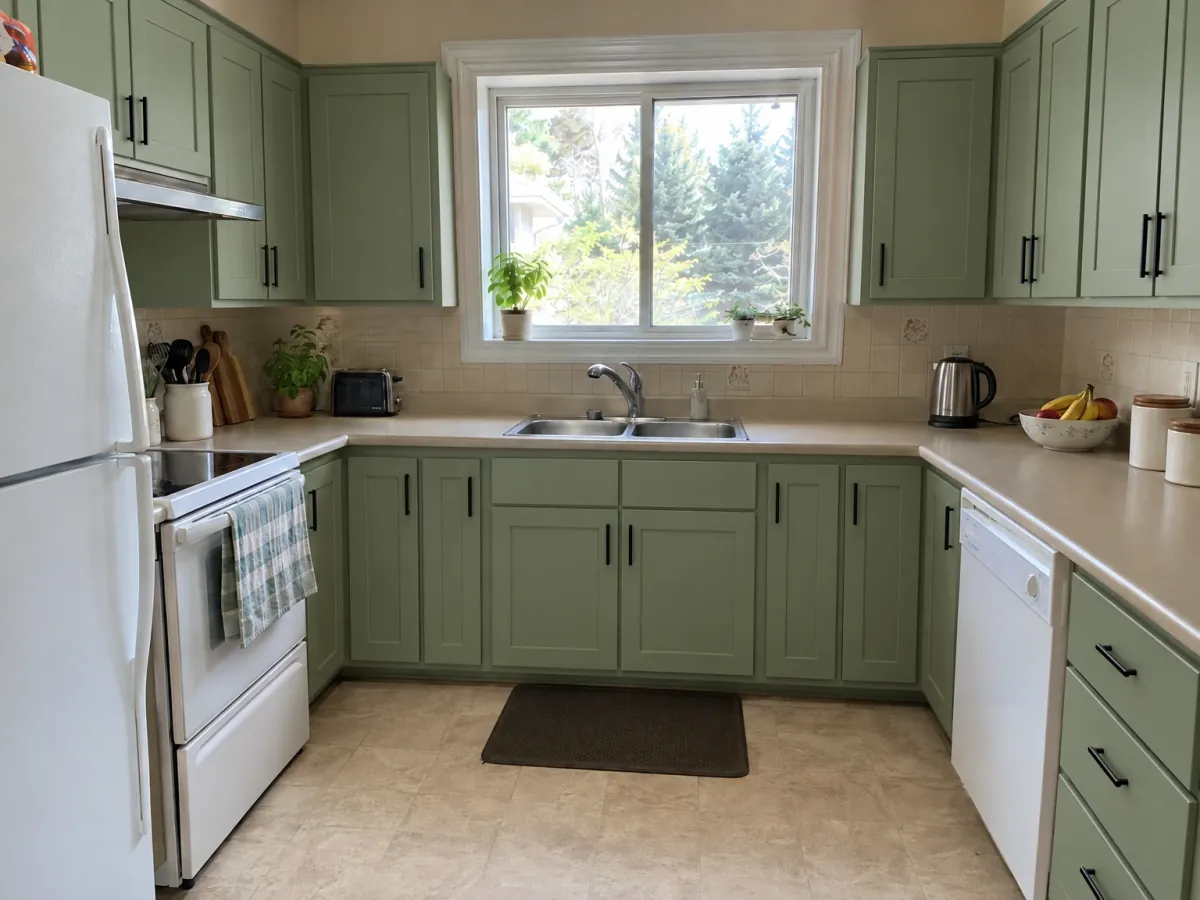
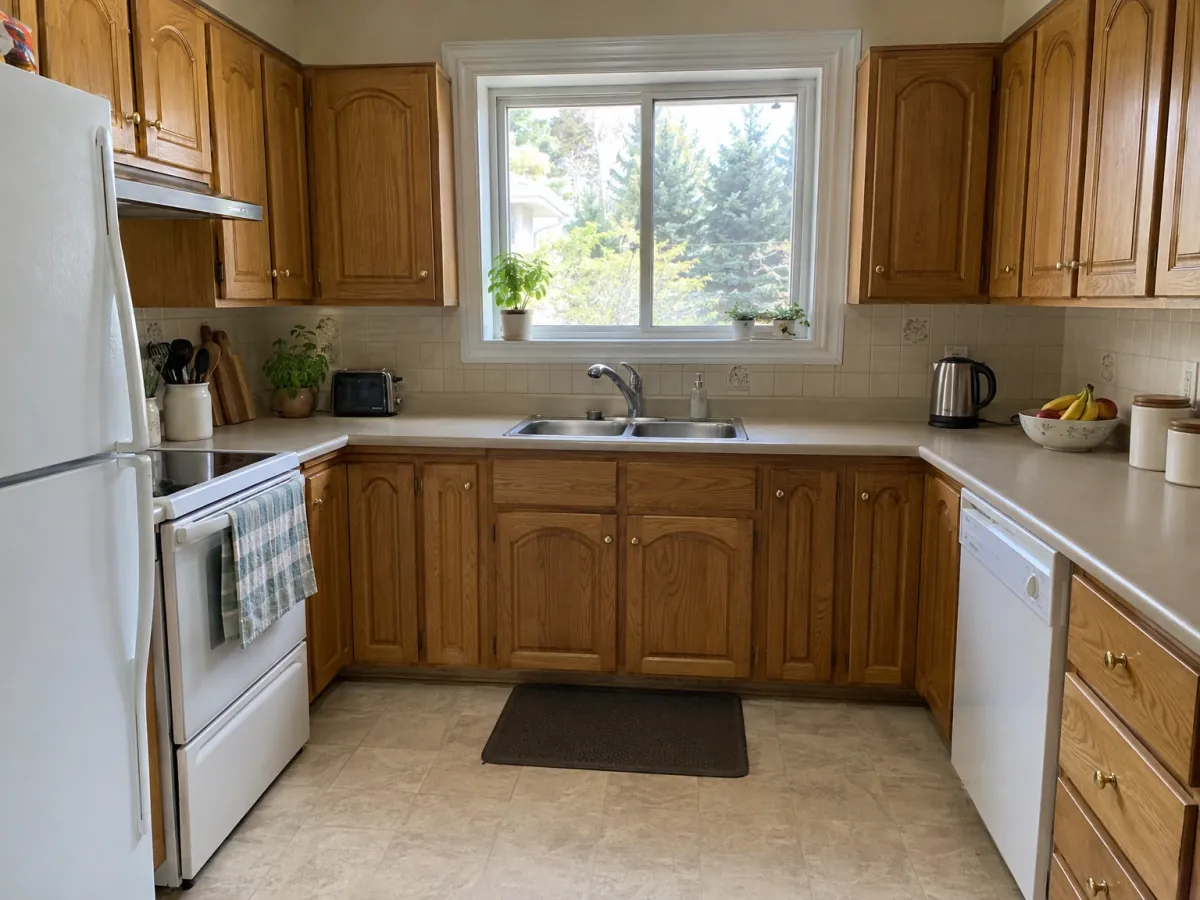
Illustrative AI example. Results vary.



AI inpainting in DecorAI at a glance
| What it does | Changes only the brushed area of a room photo and keeps every other part of the picture |
|---|---|
| What you provide | One room photo, a brushed area and a short written description of the change |
| What you get | The same photo with the marked area changed, ready to save or share |
| Time | Usually under 10 seconds for each edit |
| Platforms | iPhone and iPad (iOS 16 or later), Android, web app |
| Plan | Free plan with 3 designs a day; unlimited with DecorAI Pro |
How to change one part of a room photo with AI
Upload a photo of the room
Open DecorAI on your phone or in the web app and choose the inpainting tool. Take a new photo or pick one from your library. A straight, well-lit shot of the area you want to change works best.
Brush over the area
Paint over the part of the photo you want to change with your finger or the mouse. Cover the whole object, for example every cabinet door, and stay close to its edges so its neighbors stay as they are.
Describe the change
Type what should appear in the marked area, such as “matte sage green shaker cabinets with black handles”. DecorAI redraws that area to suit the light and perspective of the photo and returns the edited picture.
What can you change with AI inpainting?
Inpainting suits decisions about one element in a room that otherwise stays. These four examples are among the most common, and each takes a single brushed area and one sentence.
Kitchen cabinet colors
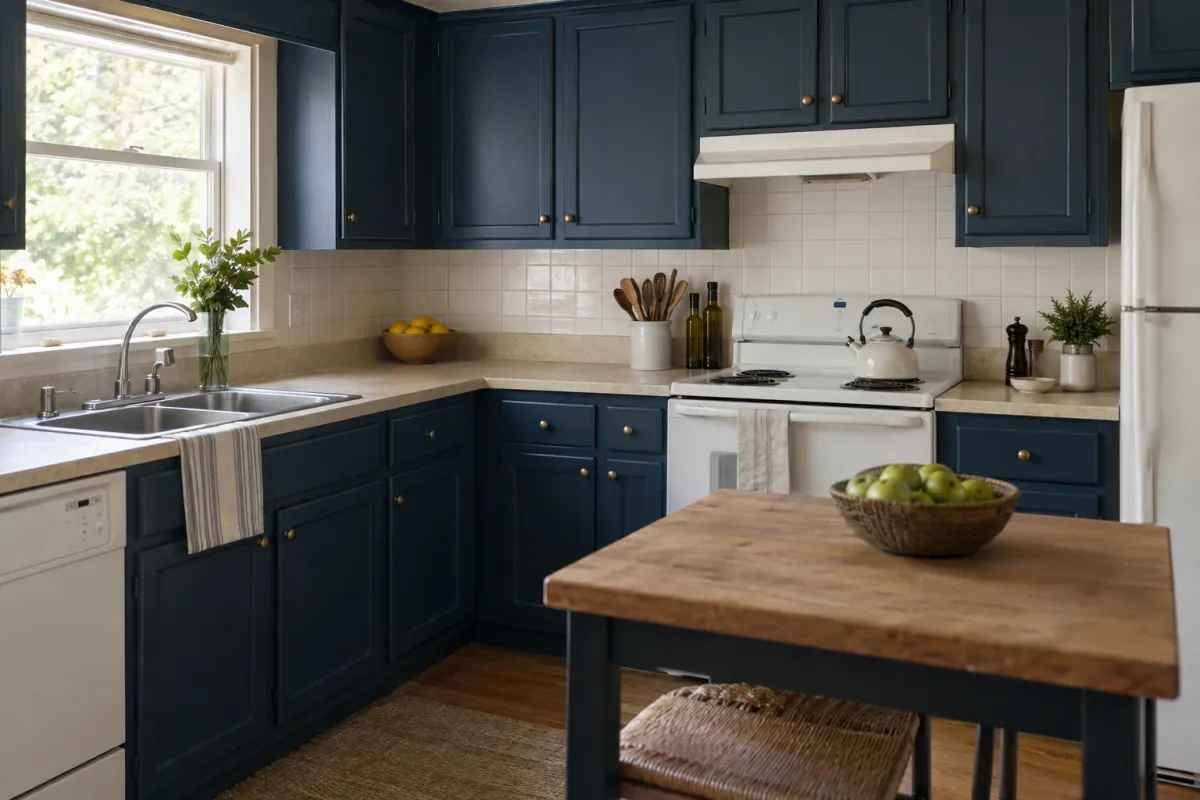
Brush over the cabinet doors and drawer fronts and ask for a new color or door style. The countertop, backsplash and appliances stay, so the picture shows how painted or refaced cabinets look next to the surfaces you plan to keep. Many people use this as a kitchen cabinet visualizer before they order paint.
A new sofa or armchair
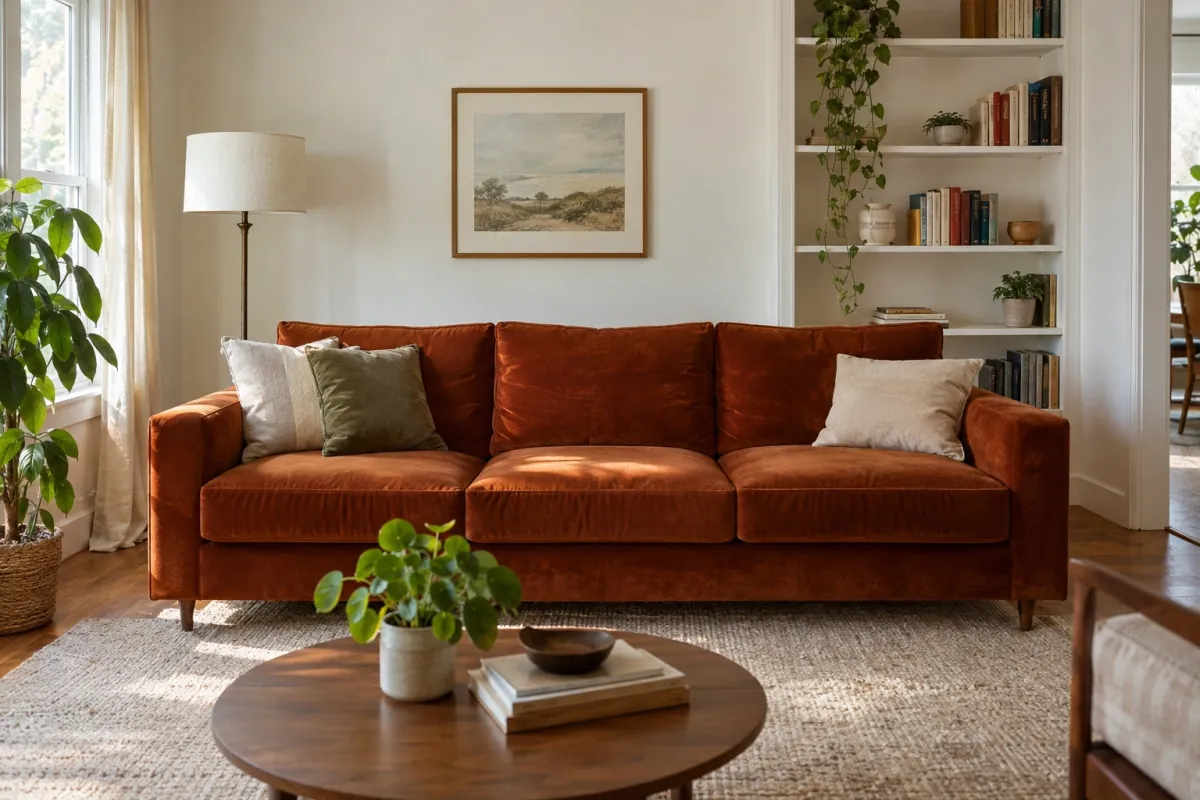
Mark the sofa and describe the replacement: a color, a fabric and a shape, for example a rust velvet three-seater. The rug, shelves and walls around it remain the same, which makes it easy to judge whether a bold piece suits the room you already have.
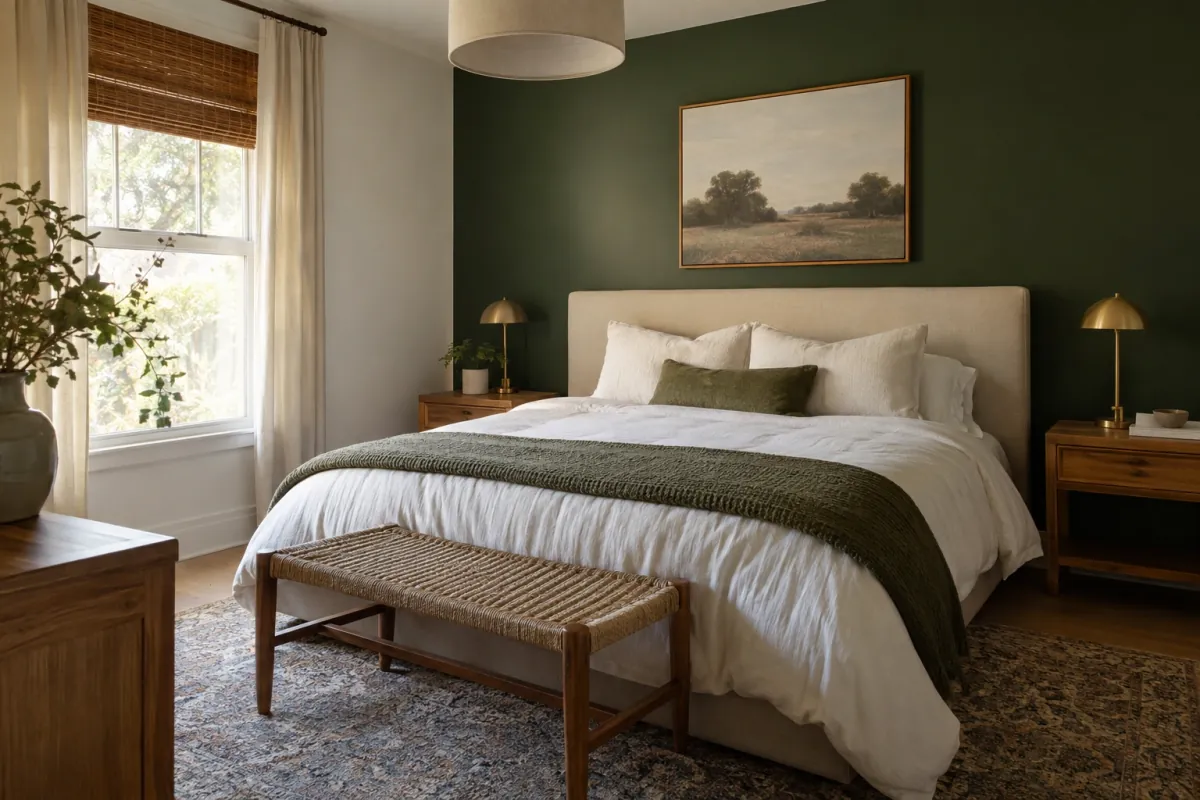
One wall in a new color
Brush over a single wall to test an accent color, wallpaper or wood paneling. The furniture in front of the wall stays in place. Try two or three shades on the same photo and compare the saved results side by side before buying sample pots.
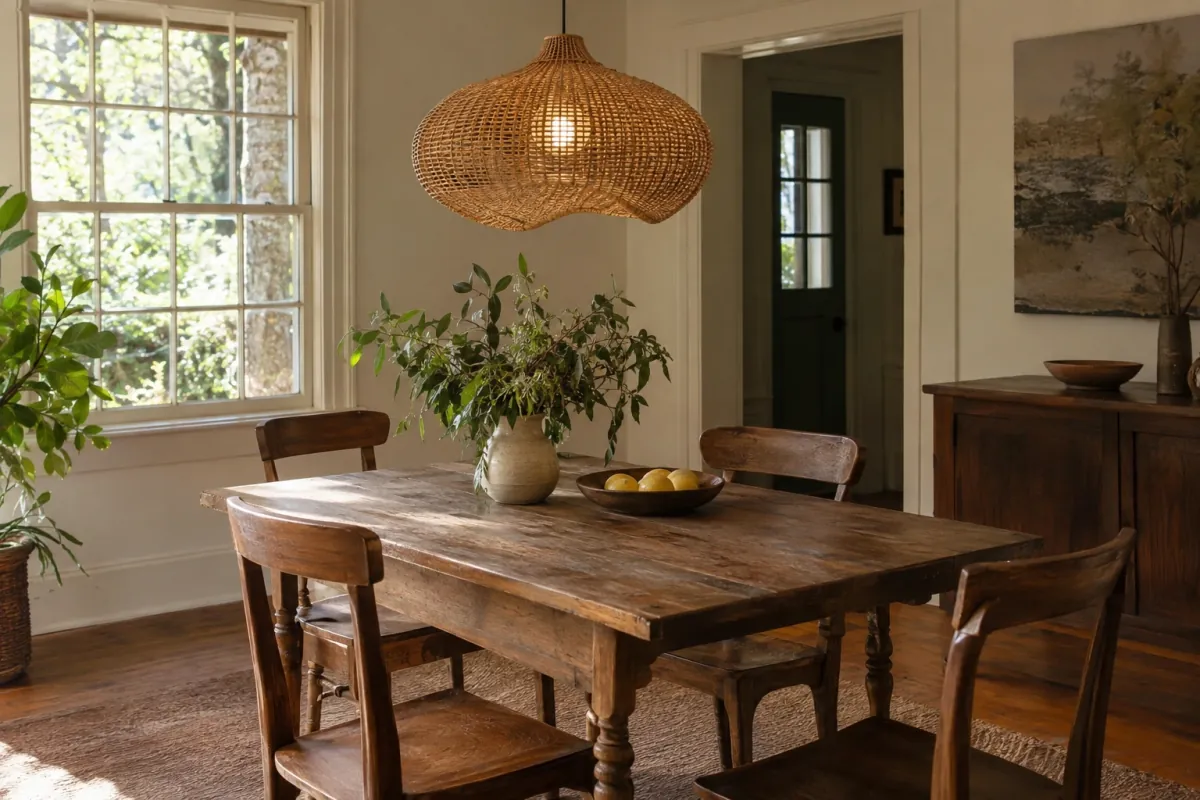
Lighting and small fixtures
Small objects change a room more than their size suggests. Mark a ceiling light, a mirror, a faucet or a curtain and describe the new one. Inpainting places the new fixture in the same spot and keeps the table, the chairs and the rest of the scene.
Tips for clean inpainting results
Cover the whole object
Brush slightly past the edges of the object you want to replace. A sofa that is only half marked keeps half of its old shape. Include the shadow under furniture as well, so the new piece gets a shadow of its own.
Describe material, color and shape
A precise sentence gives a precise result. Write “flat matte white cabinet doors with oak handles” instead of “new cabinets”. Name the material, the color and the form, and add the finish if it matters, such as glossy, brushed or textured.
Change one thing per edit
Edit the cabinets first, save the result, then mark the backsplash in the new photo. Working in single steps keeps each change easy to compare and lets you go back one step if a result misses the idea.
Start from a sharp, bright photo
Take the photo in daylight, hold the phone level and keep the object fully in the frame. Wipe the lens first. The edit follows the light and perspective of your picture, so a clear photo leads to a believable result.
Is AI inpainting in DecorAI free?
Yes. Inpainting is part of DecorAI's free plan, which gives you 3 designs a day with a short ad before each one and a small watermark on saved images, and works without an account or payment card. DecorAI Pro makes it unlimited and removes ads and watermark for $9.99 a week, $17.99 a month, $39.99 a year or $219 once (US prices).
Questions about AI inpainting
What is AI inpainting for interior design?
AI inpainting is a way to edit one part of a picture. DecorAI's AI inpainting tool changes only the area of a room photo that you brush over, such as the kitchen cabinets or one sofa, and leaves the rest of the photo as it is. You describe the change in a sentence.
Can AI change just my kitchen cabinets in a photo?
Yes. Upload a photo of your kitchen to DecorAI, brush over the cabinet doors and describe the new color or style. The app returns the same kitchen with new cabinets, while the countertop, backsplash, appliances and floor stay as they are in your photo.
Is inpainting AI free to use in DecorAI?
Yes. Inpainting is included in the free plan of DecorAI, with 3 designs a day and without an account. Free results carry a small watermark and a short ad plays before each design. DecorAI Pro offers unlimited edits without ads or watermark on iPhone, Android and the web app.
How is inpainting different from a full room redesign?
A full redesign in DecorAI restyles the whole room in a style you pick: furniture, colors, lighting and decor. Inpainting works on one marked area and keeps everything else. Use a redesign to find a direction for the room and inpainting to decide on a single piece or surface.
What should I write in the inpainting description?
Write what you want to see in the marked area, in plain words: the object, its color, its material and its shape. For example, “a round oak dining table for four” or “white subway tile backsplash”. One clear sentence is enough, and you can run the edit again with a different sentence.
Can I use inpainted photos for client work?
Yes. DecorAI allows personal and commercial use of the images on every plan, including the free one. Contractors, painters and kitchen fitters use an edited photo to show a customer one change in the customer's own room before work starts. Label the image as an AI visualization when you share it.
Try AI inpainting on your own room photo
Take one photo, brush over the part you want to change and describe it. DecorAI shows the result in seconds on iPhone, Android and the web, and the first 3 designs every day are free.
Try AI inpainting free: