How to remove furniture from a photo of a room
To remove furniture from a room photo, upload the photo to DecorAI and run the tool that empties a room. DecorAI takes out the furniture, boxes, rugs and decor and rebuilds the floor and walls they covered, so you see the bare room with its windows and doors in place. You can then furnish the empty picture again in any style.
- Time: about 5 minutes from photo to empty room.
- You need: one photo of the furnished room and the DecorAI app or web app.
- Result: the same room, bare, ready to measure up in your head or to restage.
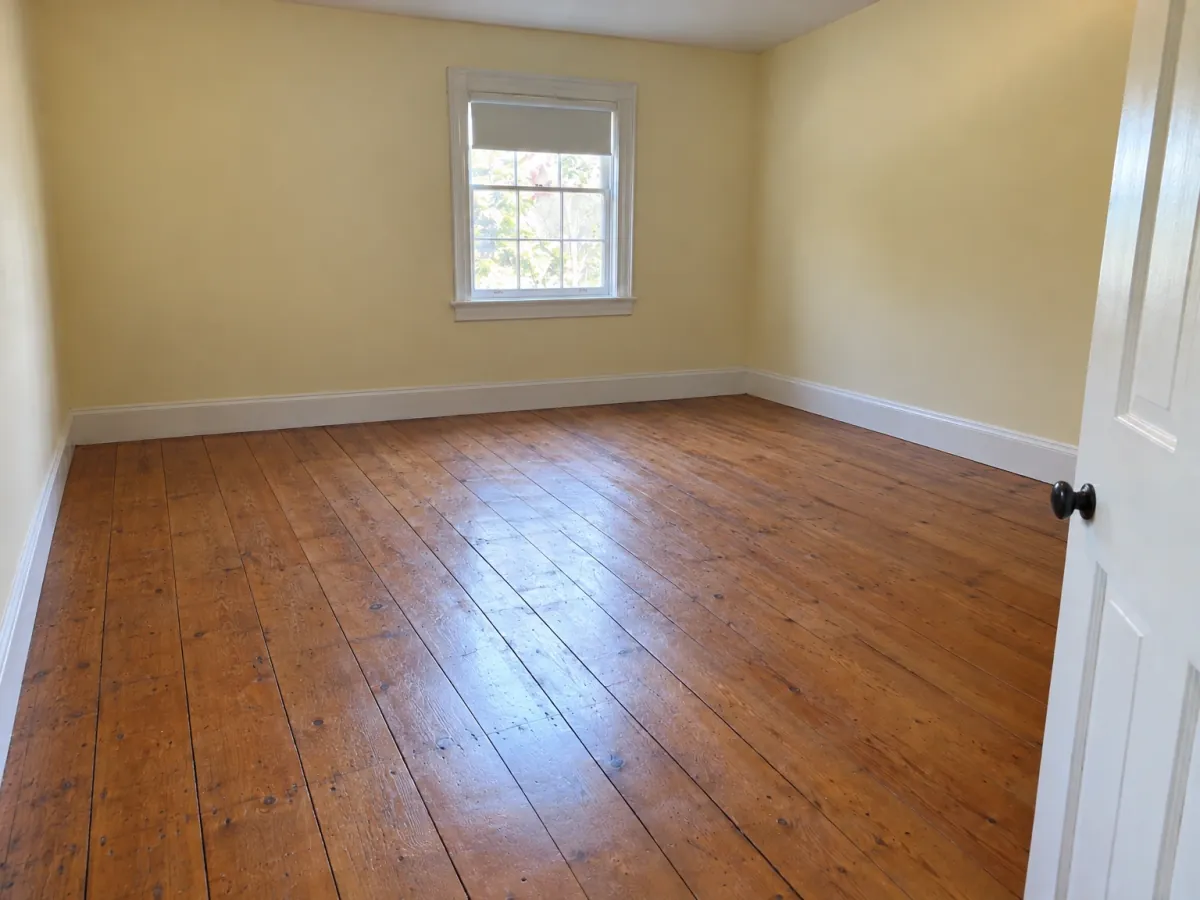
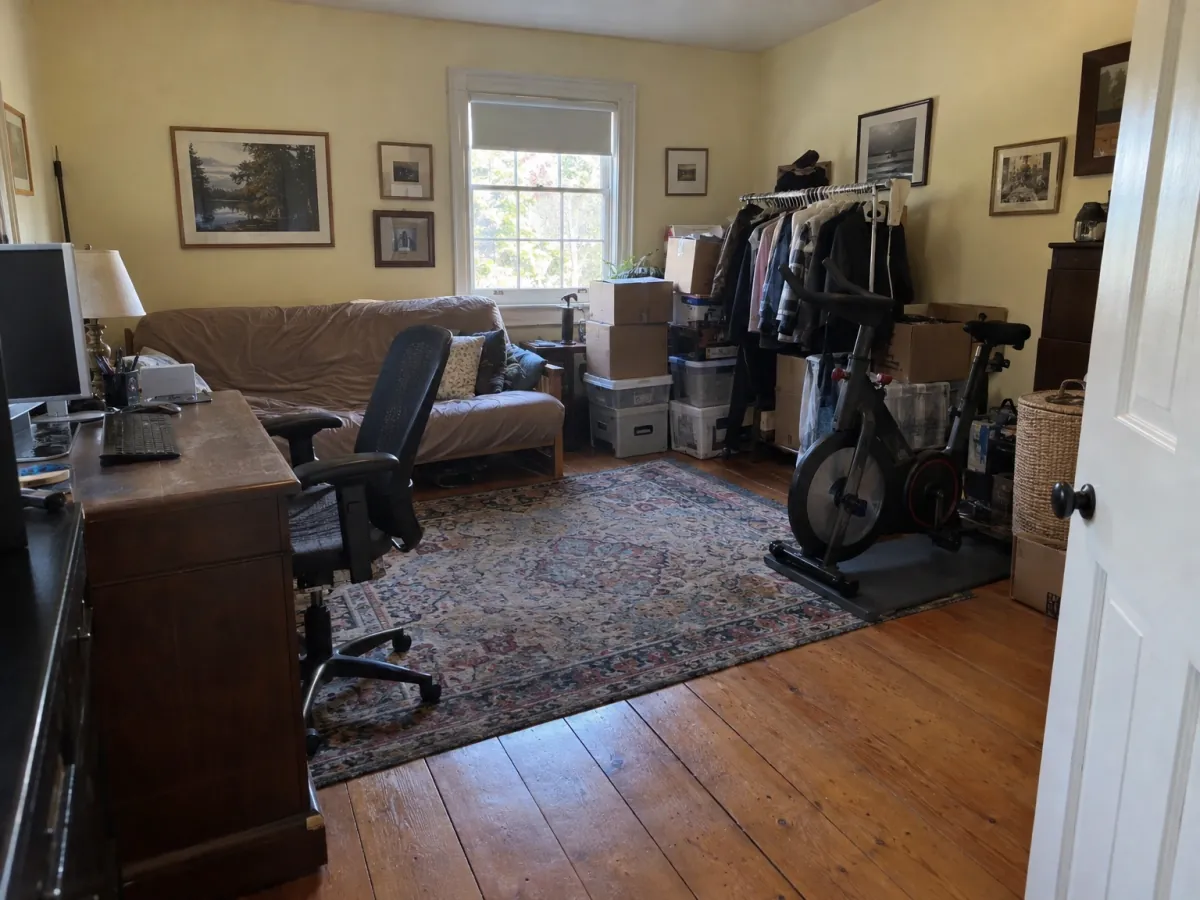
Illustrative AI example. Results vary.



What you need
- A photo of the furnished room, taken from a corner or the doorway.
- The DecorAI app on iPhone, iPad or Android, or the web app in a browser.
- A reason to see the room bare: a move, a renovation, a sale or a fresh start.
How to empty a room in a photo, step by step
Step 1: Take a wide photo of the room
Stand in the doorway or a corner and capture as much of the room as possible: the floor, the walls and the window. The more of the room's edges the photo shows, the better DecorAI can rebuild the floor and walls that the furniture hides today. Daylight keeps the colors true.
Step 2: Open the empty-the-room tool
In DecorAI, choose the tool that empties a room and add your photo, either by taking it in the app or by picking it from your gallery. In the web app, drag the file into the upload area. This tool has one job: to clear the space while the room itself stays.
Step 3: Let DecorAI clear the room
Start the generation and wait for the result, which usually takes less than a minute. DecorAI removes the furniture, boxes, rugs, pictures and clutter, and continues the floor boards, tiles or carpet and the wall color into the areas that were hidden. Windows, doors, radiators and outlets stay where they are.
Step 4: Check the bare room
Drag the comparison slider and look at the edges: corners, skirting boards and the floor under where the largest piece stood. If a small object remains, run the photo again or brush over the spot with the inpainting editor and describe an empty floor. Save the version that looks cleanest.
Step 5: Furnish it again or use it as it is
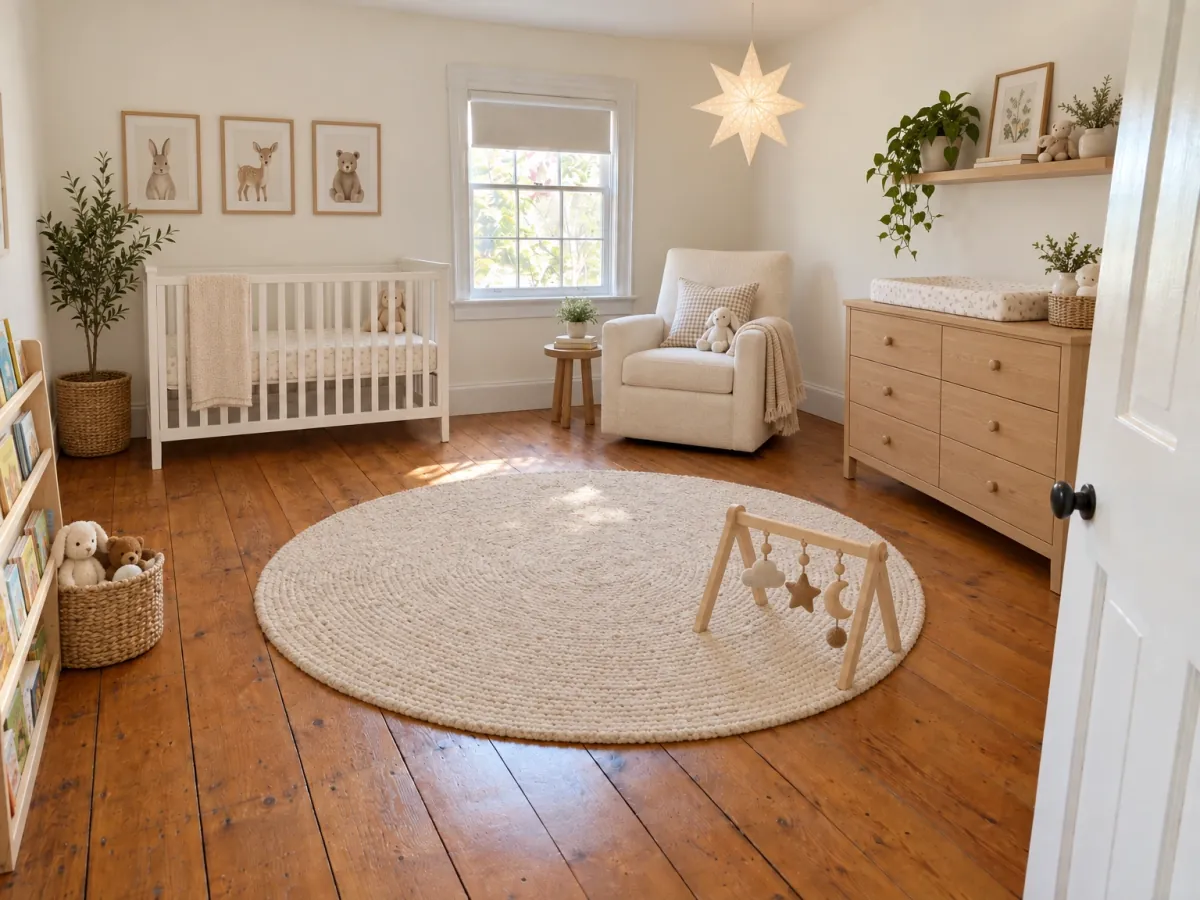
Use the empty room to judge the space before a move or a renovation, or send it to a painter or a floor fitter. To see a new use, stage the empty picture with a room type and a style, for example turning a storage room into a nursery.
Tips for a clean empty-room picture
Open curtains and blinds
Window light shows the texture of the floor and the walls. The more of that texture is visible around the furniture, the more natural the filled-in areas look.
Include the whole floor line
Make sure the line where the floor meets the walls is visible on at least two sides. It gives DecorAI the shape of the empty room.
Shoot one photo per room
For a whole home, photograph each room separately from its best corner. One room per photo gives a clearer empty result than a wide view through two doorways.
Keep the original next to the result
Save the furnished photo and the empty version together. Side by side they help painters, buyers or family members understand what changes and what stays.
Habits that give better empty rooms
Photograph from eye level
A photo taken from high above or close to the floor distorts the room. Hold the phone at chest height so the emptied room keeps its natural proportions.
Use the empty room for planning
Treat the picture as a planning aid: to sense the space, to compare paint or floors, or to stage the room again. Measure the real room before you buy anything for it.
Disclose edited listing photos
If an emptied or restaged image markets a property, say that it has been edited, and keep the original photo available, so viewers know what they will find.
The DecorAI tool for this guide
The page about removing furniture from a photo explains what DecorAI's empty-the-room tool clears, which rooms it suits, and how movers, renovators and home stagers use the bare result.
Questions about removing furniture from a photo
Can AI remove furniture from a photo of a room?
Yes. DecorAI's tool that empties a room takes furniture, boxes, rugs and decor out of a room photo and rebuilds the floor and walls they covered. The result shows the same room bare, with its windows, doors and radiators in place, usually in less than a minute.
Why would I want an empty picture of my room?
An empty picture helps when you plan a move, a renovation or a new layout, because you see the space without the habits of the current furniture. Home sellers and stagers also use the bare room as the starting point for a fresh, virtually staged version.
What if one object is still visible after emptying the room?
Run the photo again, or use DecorAI's inpainting editor: brush over the object in the iPhone or Android app and describe what should be there instead, such as bare floorboards. The rest of the picture stays as it is, so only that spot changes.
Can I remove only one piece of furniture and keep the rest?
Yes. For a single piece, use DecorAI's inpainting editor instead of emptying the whole room. Brush over the sofa or the cabinet you want gone, describe the empty floor or wall that should show, and DecorAI edits only that area of the photo.
Is removing furniture from a photo free in DecorAI?
Yes. The tool that empties a room is part of DecorAI's free plan. People who clear many photos, such as stagers or landlords, use DecorAI Pro for unlimited designs at $9.99 a week, $17.99 a month, $39.99 a year or $219 once in the US.
See your room without the furniture
Take one photo of the furnished room and let DecorAI clear it. Then keep the bare picture or furnish it again. Available on iPhone, Android and the web.
Empty your room now: