How to virtually stage an empty room
To virtually stage an empty room, photograph it from a corner, upload the photo to DecorAI's virtual staging, and choose the room type and a furniture style. DecorAI furnishes the same room with a coherent set of furniture and decor and keeps its walls, floor and windows. Label the result as virtually staged wherever you use it to market a property.
- Time: about 10 minutes for the photo and two or three staged versions.
- You need: a photo of the empty room in daylight and the DecorAI app or web app.
- Result: the same room furnished in the style you chose, ready to save.
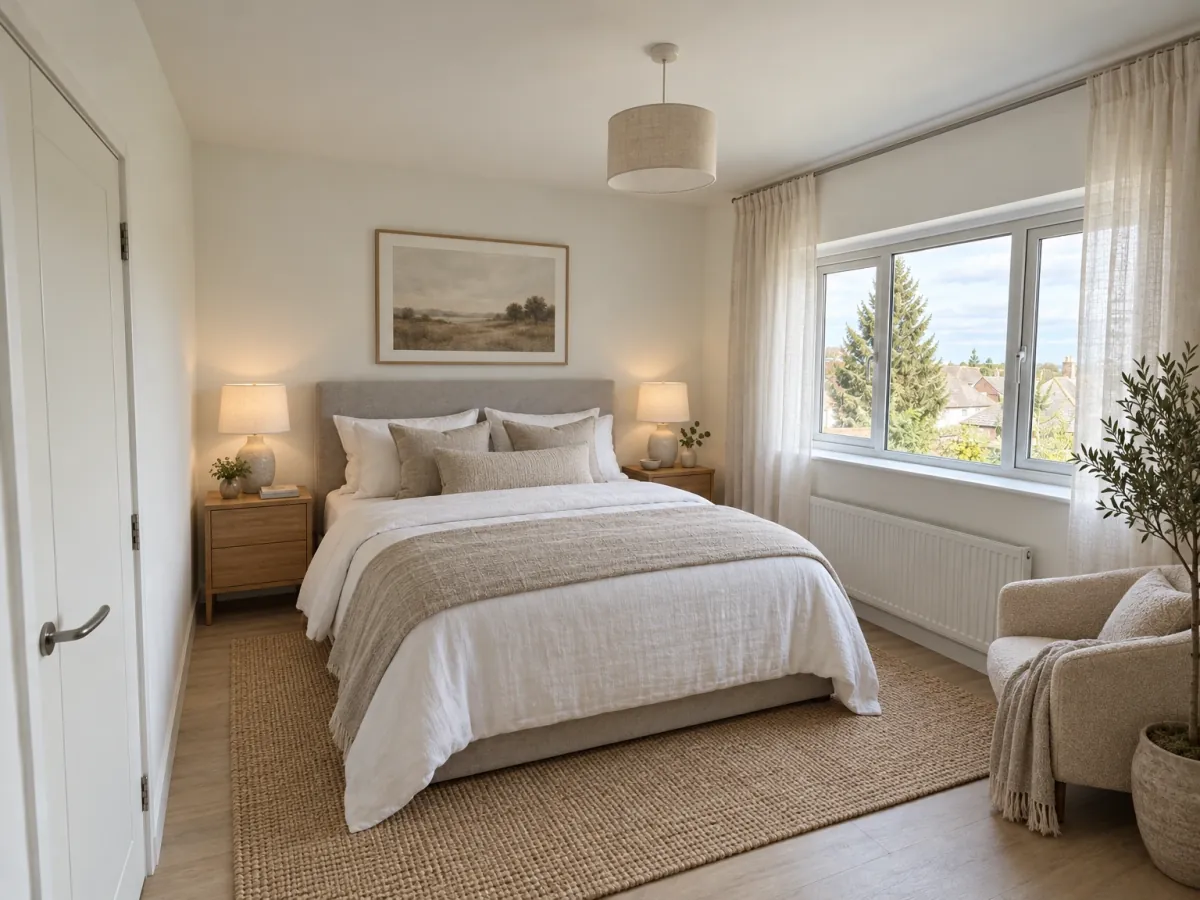
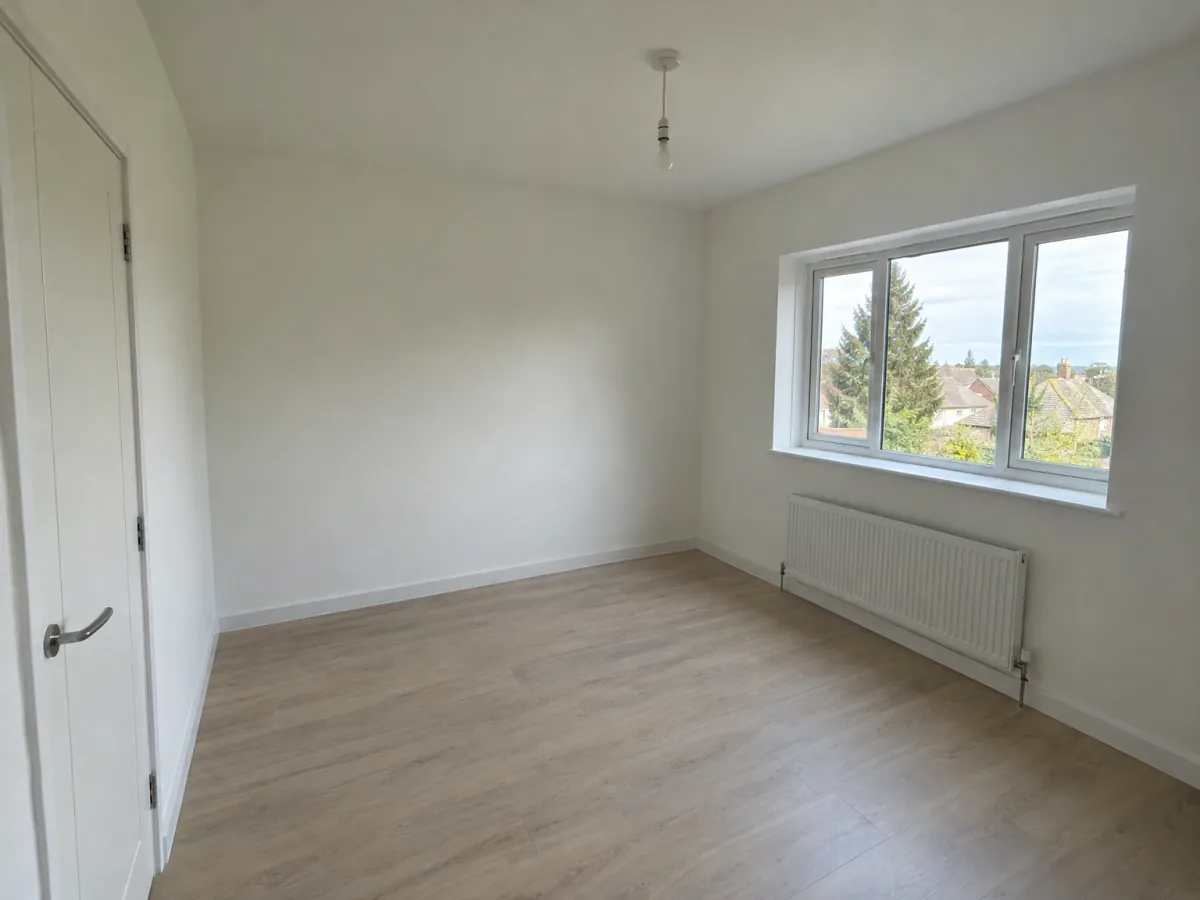
Illustrative AI example. Results vary.



What you need
- An empty or nearly empty room, or a photo of one.
- A phone with the DecorAI app, or a computer with the web app.
- An idea of who the room is for: buyers, guests, a tenant or yourself.
- If the room still holds furniture: DecorAI's tool that empties a room.
How to virtually stage a room, step by step
Step 1: Prepare the room for the photo
Sweep the floor, open the blinds and switch on every light. Remove ladders, paint tins and anything left from moving out. An empty room with clean edges and bright, even light gives DecorAI a clear base for furniture of a believable size and in the right perspective.
Step 2: Shoot from the corner
Stand in the corner opposite the window and hold the phone level at chest height in landscape format. Include the floor, two walls, the window and the doorway. A wide view shows the size of the room, which is exactly what people want to judge when they look at a staged picture.
Step 3: Upload the photo to virtual staging
Open DecorAI, choose virtual staging and add the photo from your gallery, or take it directly in the app. In the web app, drop the file into the upload area. If the owner's furniture is still in the room, run the empty-the-room tool first and stage the empty result.
Step 4: Choose the room type and a style
Pick the room type the space should show, such as bedroom, living room or home office. Then pick a furniture style for the people you expect: a calm Scandinavian or Modern look suits most buyers, while a warmer style suits a holiday rental. Add a color palette to narrow the mood.
Step 5: Try a second room type
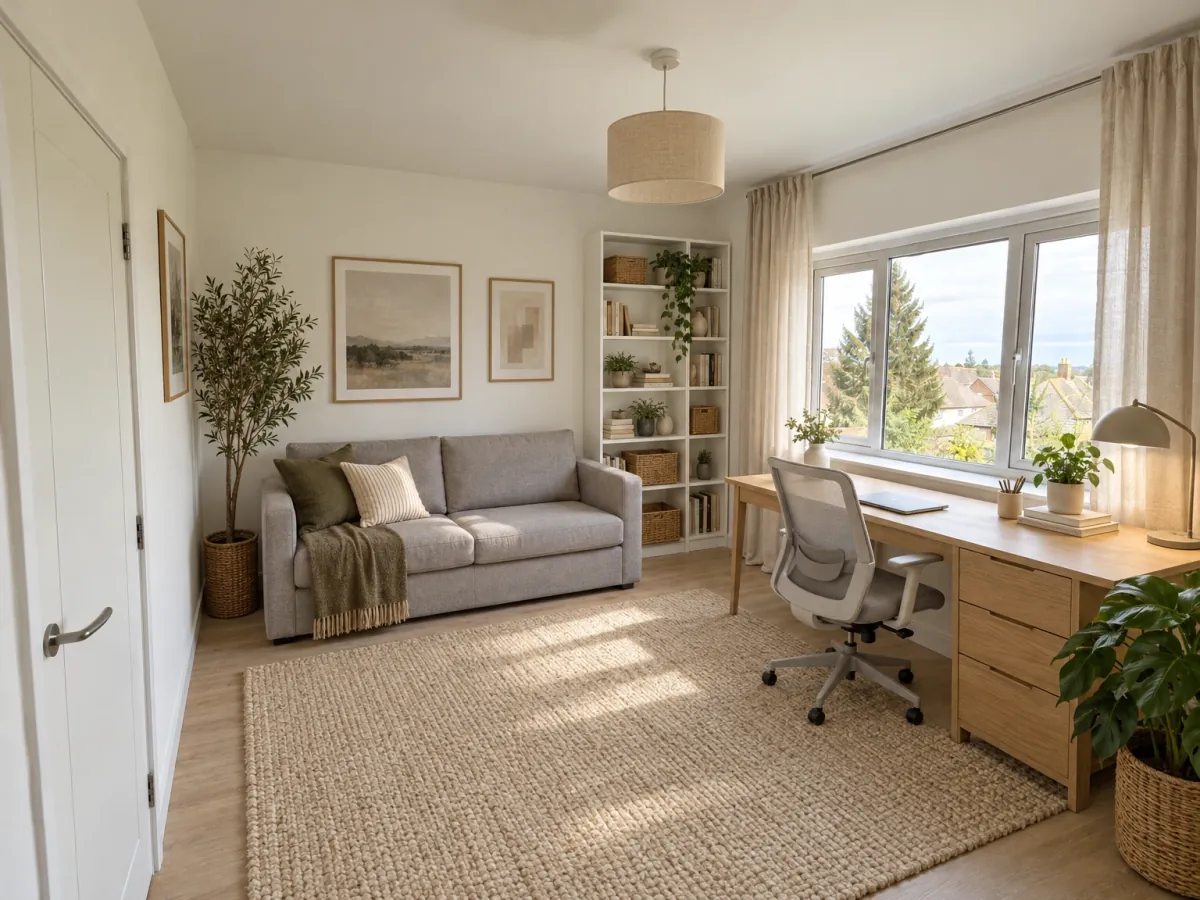
Many rooms can serve two purposes. Stage the same photo a second time as a different room, for example a home office with a sofa bed instead of a bedroom. Two versions help buyers and guests see the flexibility of the space, and they help you decide how to furnish it yourself.
Step 6: Save, label and use the picture
Save the staged versions you like and keep the original photo next to them. When a staged image markets a property, add a clear note such as virtually staged, and show the empty photo as well. For your own planning, use the staged picture as a shopping list for the real room.
Tips for realistic virtual staging
Stage the rooms that sell the home
Living room, main bedroom and kitchen-diner shape the first impression. Stage those first, and leave small rooms such as a laundry room in their real state.
Keep one style across the home
Use the same style for every room of one property, so a set of staged photos reads as one home rather than five different apartments.
Use custom instructions for problem corners
An awkward alcove or a sloped ceiling can get a purpose. Type a short instruction such as a reading chair in the alcove, and DecorAI includes it in the staging.
Furnish for real size
Compare the staged bed or sofa with the door and the window in the photo. If the furniture looks large for the room, generate again and ask for fewer or smaller pieces in the custom instructions.
Habits for honest, convincing staging
Disclose staged photos
Mark every virtually staged image in a property listing as virtually staged, and include the photo of the empty room. Honest labels keep buyers' trust when they visit.
Show the real space in rental listings
Guests expect the photos to match their stay. Use staging to plan and furnish a rental, then photograph the real, finished room for the listing.
Keep the room's real features
Staging adds furniture and decor to the room you have. Windows, radiators and doors stay where they are, so the picture remains a fair view of the space.
The DecorAI page for this guide
DecorAI's virtual staging page describes how professional home stagers and short-term rental hosts use the app, with examples, plans for teams and the rules for marketing staged photos.
Questions about virtual staging
What is virtual staging?
Virtual staging adds furniture and decor to a photo of an empty room, so people can picture how the space can be used. DecorAI stages a room from one photo: you choose the room type and a style, and the app returns the same room, furnished, with its walls and windows in place.
Can I virtually stage a room myself without a stager?
Yes. With DecorAI you can stage a room yourself from a phone photo in a few minutes. The app handles the furniture, the perspective and the light. Professional stagers use the same app to show clients several looks before they bring real furniture into a home.
Do I have to say a photo is virtually staged?
Yes, when the photo markets a property. Many listing platforms and local rules ask for staged images to be marked, and buyers expect it. Add a clear virtually staged note to each DecorAI image you publish and show the empty room as well, so the photos stay a fair picture of the home.
Can I stage a room that still has furniture in it?
Yes, in two steps. First use DecorAI's tool that empties a room to remove the existing furniture and clutter from the photo. Then stage the empty result with a new room type and style. The walls, floor and windows of the original photo stay throughout.
Can I use DecorAI's staged photos commercially?
Yes. Commercial use of the designs is allowed on every DecorAI plan, including the free plan, so agents, stagers and hosts can use staged images for their work. Teams that stage many photos often choose DecorAI Business, a web app plan for three people at $59 a month.
Furnish your empty room in a photo
Photograph the empty room, choose who it is for and stage it in two styles. DecorAI runs on iPhone, Android and in the browser.
Stage your first room: