Interior Design Community: Room Ideas and Projects
DecorAI's community shows room designs shared by other DecorAI users, which you can like, save and add to with your own, and its projects keep the designs for one room or job together through Analyze, Plan and Redesign.
- Browse trending designs that other DecorAI users have shared.
- Like and save ideas, and share your own designs when you want.
- Group the designs for each room in a project: Analyze, Plan, Redesign.
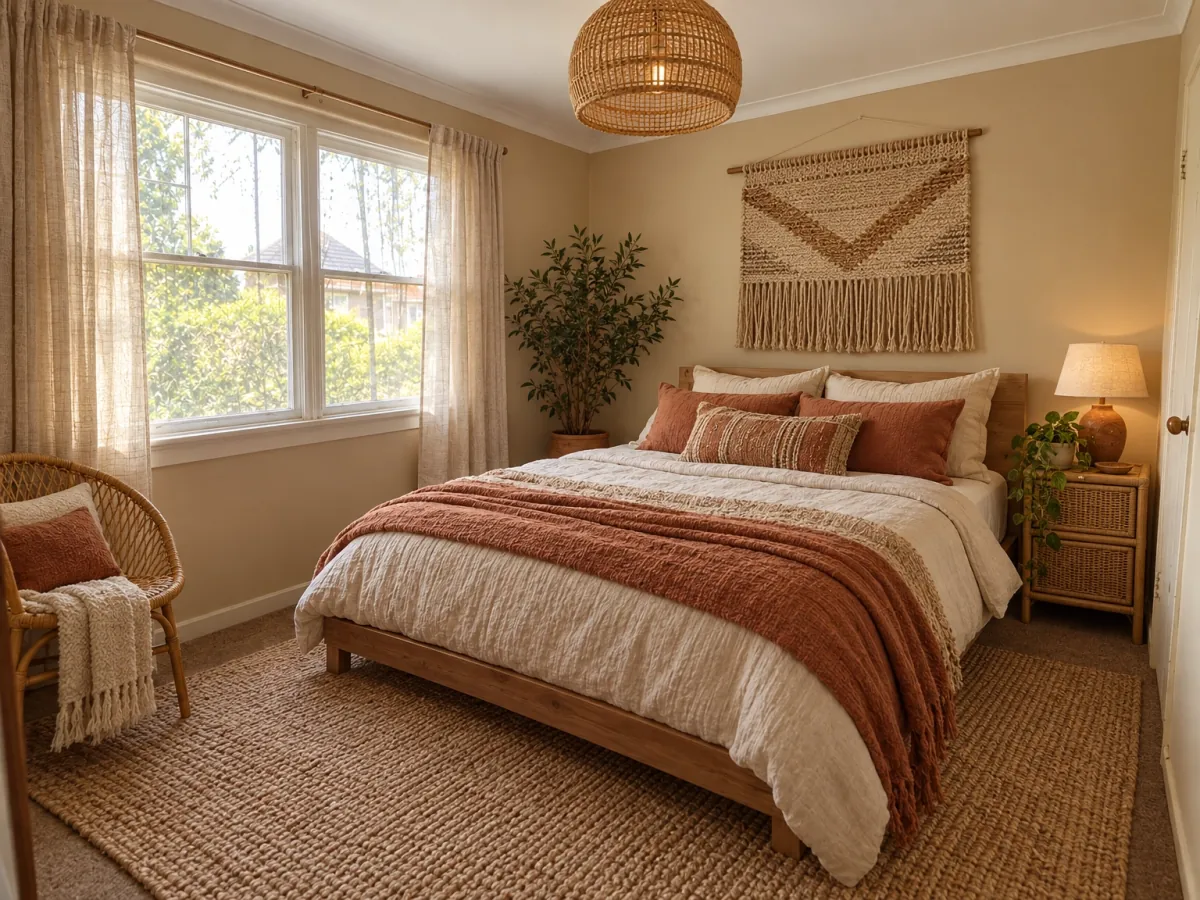
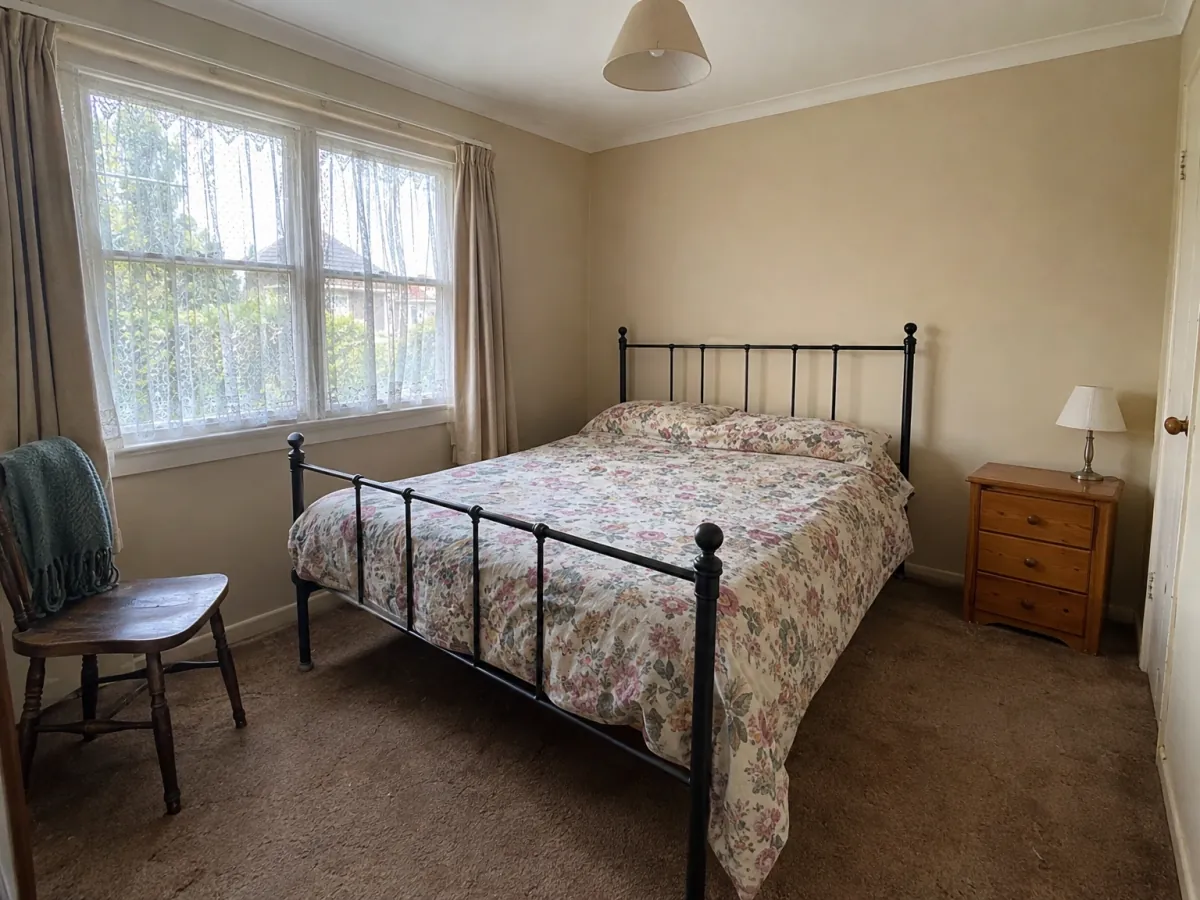
Illustrative AI example. Results vary.



The DecorAI community and projects at a glance
| What it does | Shows designs shared by DecorAI users and groups your own designs into room projects |
|---|---|
| What you provide | Your likes and saves, the designs you choose to share, and a name for each project |
| What you get | A feed of room design ideas, a Saved tab and one place per room for its designs |
| Time | Browsing, saving and sorting are separate from your 3 designs a day |
| Platforms | iPhone, iPad, Android and the web app, synced through one account |
| Plan | Free plan and DecorAI Pro |
How to use the community and room projects
Browse the community
Open the community in DecorAI to see designs shared by other users, with the most liked designs first. Each design shows its room type and style, so you know what to choose when you want a similar look for your own room.
Save and share
Tap the heart to like a design and the bookmark to keep it in your Saved tab. When one of your own results turns out well, share it from the result screen; your designs stay private until you share them.
Start a project
Create a project for a room or a job, give it a name and assign your designs to it. The project takes the room through Analyze, Plan and Redesign, and you can filter your history by project to review one room's work.
Room design ideas from the community, and where projects help
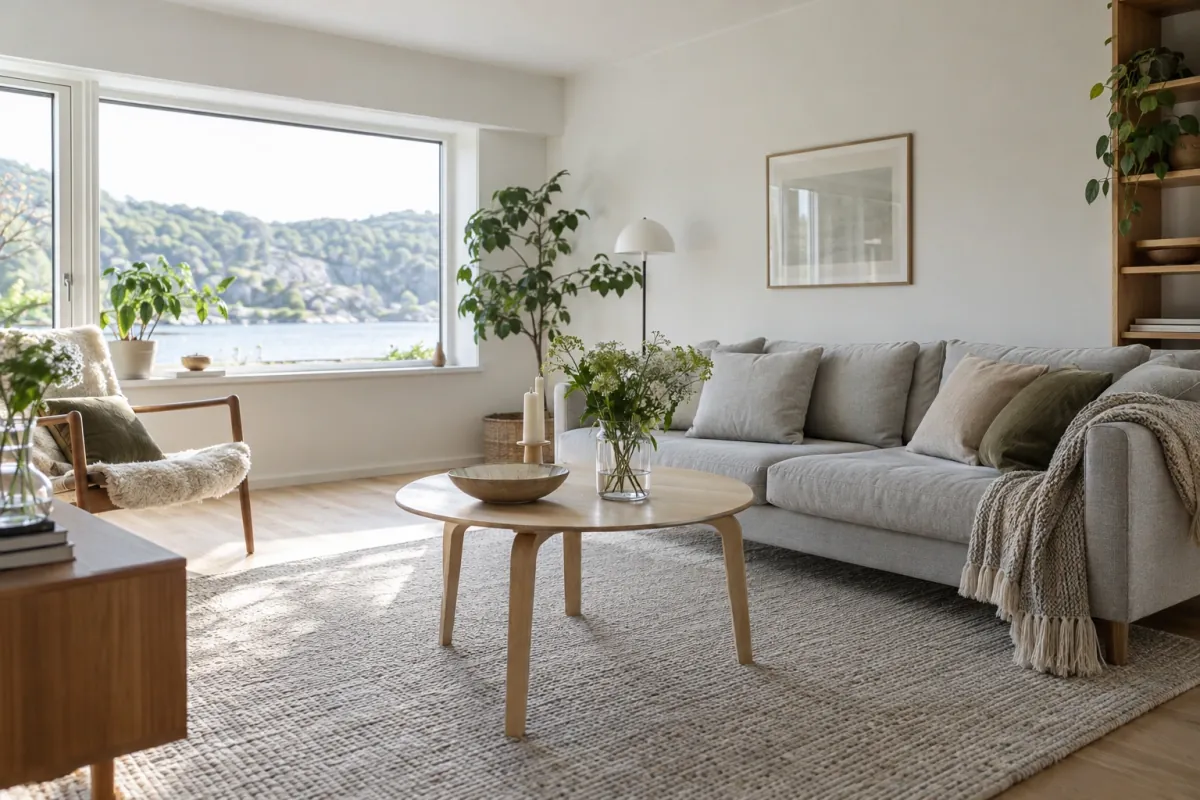
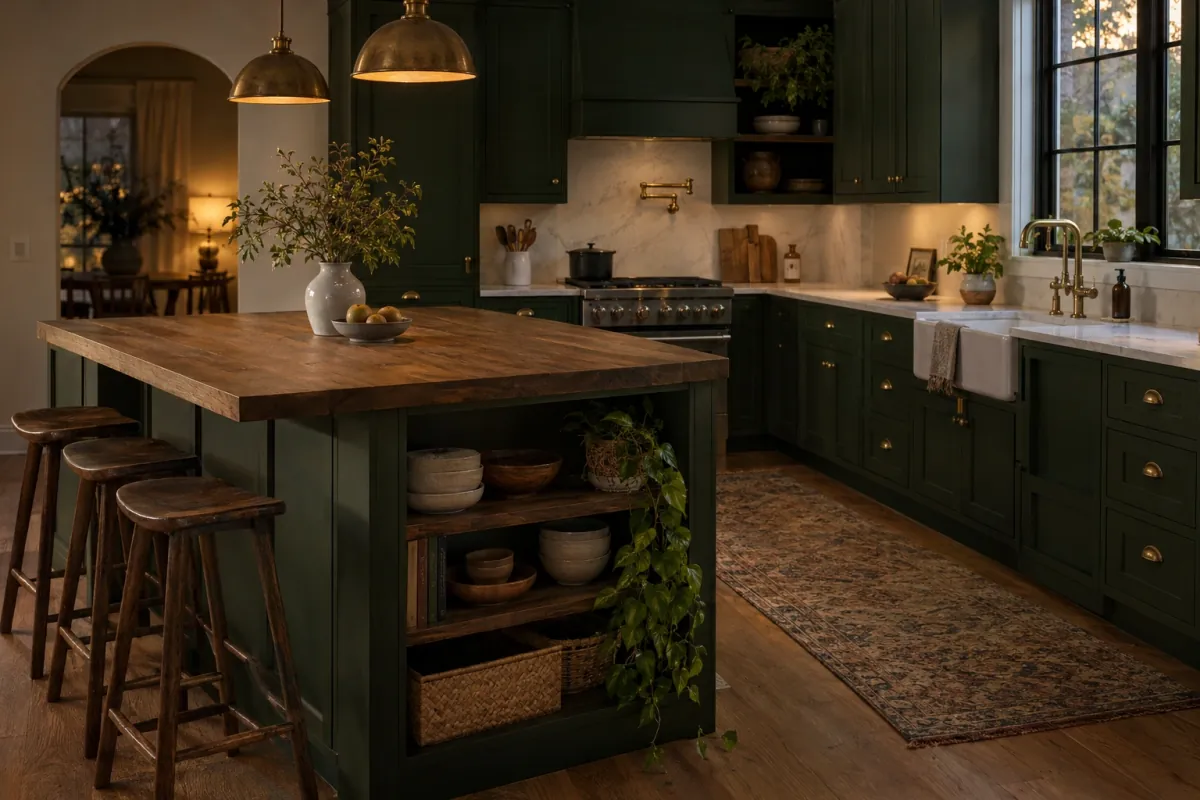
The community is where you find a direction, and a project is where you work that direction out for your own home. The photos show the kinds of rooms both are used for.
Finding a style for your room
If you only know that you want something calm and light, scroll the community for rooms in that mood. A Scandinavian living room that catches your eye names its style, and you can then redesign a photo of your own living room in that style with DecorAI.
Bolder room makeover ideas
Shared designs often go further than you might on your own, such as a kitchen with deep green cabinets and brass handles. Save these bolder ideas with the bookmark. They are useful references when you talk to a cabinet maker or decide how far a makeover should go.
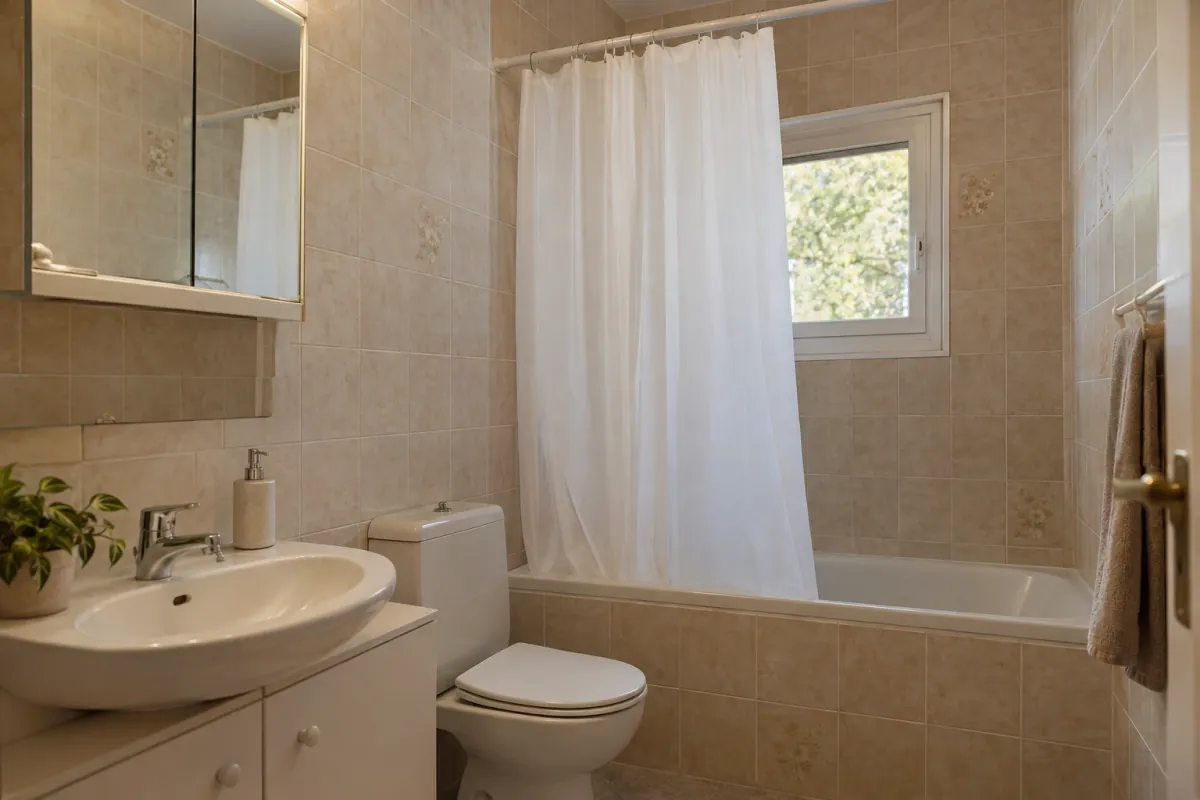
Starting from the room as it is
A project begins with the room in its current state, such as a dated bathroom with beige tiles. Name the project, keep the original photo and every redesign in it, and work through Analyze, Plan and Redesign, so all ideas for that room stay in one place.
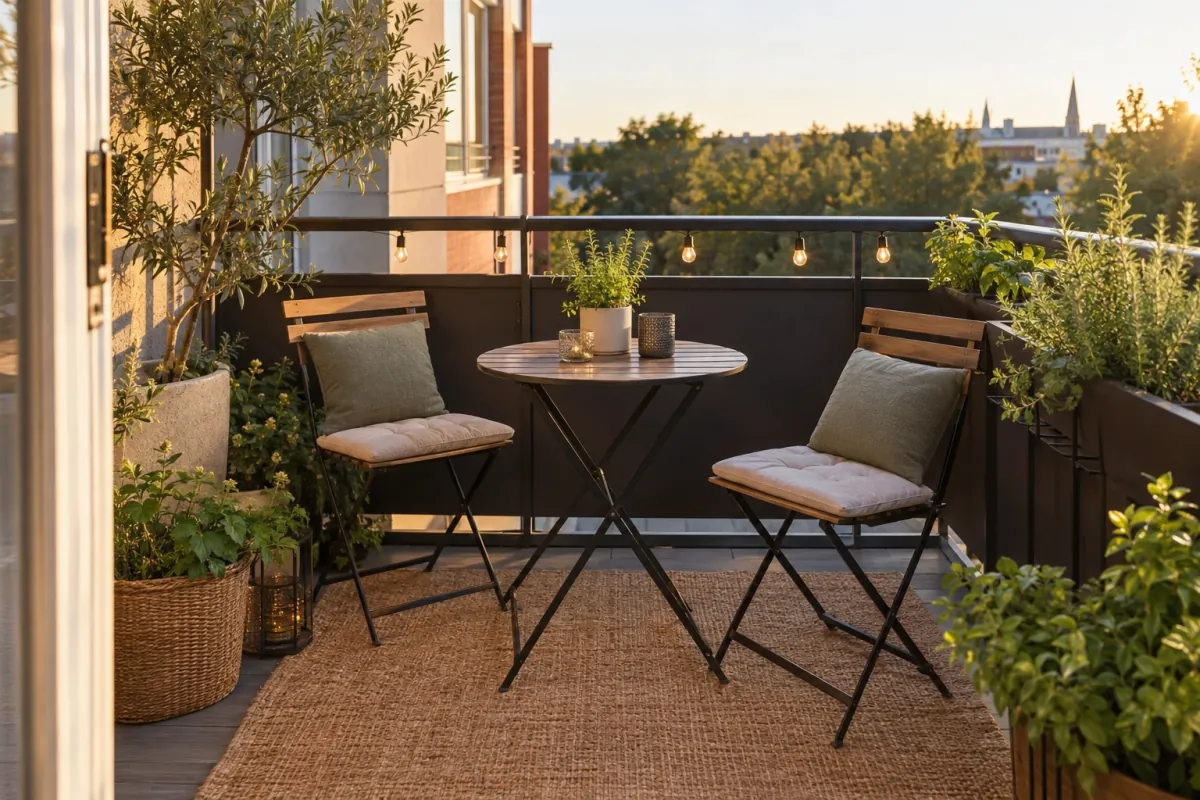
Keeping several rooms apart
When you redo more than one space, such as the bedroom now and the balcony in spring, give each its own project. Designs stay with the right space, and once a project is finished you can share its final result with the community.
Tips for the community and your projects
Note the style of designs you like
Every community design shows its room type and style. Write down the style names of the designs you save. After a few days a pattern appears, and that style is a good first choice for your own redesign.
Use the Saved tab as a shortlist
Bookmark freely while you browse, then open the Saved tab and remove what you have moved past. A short list of five to ten designs is easier to show your family, a designer or a contractor than a long scroll.
Give each room its own project
Name projects after the space and the goal, for example “Guest bedroom refresh”, and assign every design for that room as you go. When you open the project later, you see the whole path from the first photo to the chosen redesign.
Check your profile name before sharing
Designs you share appear in the community with the display name of your profile. Set the name you want others to see in your settings first, and share finished rooms you are happy to show. You can delete a shared design later.
Are the community and projects free?
The community and projects are included in the DecorAI free plan. Browsing, liking, saving and organizing are separate from the 3 designs a day of the free plan, so you can plan a project before you spend a design. DecorAI Pro costs $9.99 a week, $17.99 a month, $39.99 a year or $219 once in US prices and adds unlimited designs free of ads and watermark.
Related DecorAI tools and pages
Questions about the DecorAI community and projects
What is the DecorAI community?
The DecorAI community is a feed of room designs made with the app. DecorAI's community shows room designs shared by other DecorAI users, which you can like, save and add to with your own, and its projects keep the designs for one room or job together through Analyze, Plan and Redesign.
Where can I find room design ideas?
In DecorAI, open the community to browse room design ideas shared by other users, starting with the most liked ones. Each design names its room type and style. When an idea fits, use that style to redesign a photo of your own room, usually in under 10 seconds.
Are my designs public?
Your designs stay private until you share one. Sharing is a separate step on the result screen of a design, and it applies to that single design. Shared designs show your profile's display name, and you can delete a design you shared from the community at any time.
What are projects in DecorAI?
A project groups the work on one room or one job. You give it a name, assign designs to it and filter your history by project. In DecorAI a project follows three stages, Analyze, Plan and Redesign, which lead from the room as it is today to its new look.
Can I collect room inspiration first and design later?
Yes. Browsing and saving designs in the community are separate from the 3 free designs a day, so you can collect room inspiration for as long as you like. When you are ready, upload a photo of your room and redesign it in the style you saved.
Can designers use projects with clients?
Yes. Interior designers and contractors create one project per client room and keep every redesign of that room in it, which makes the options easy to show in a meeting. Commercial use of designs is allowed on every DecorAI plan, including the free plan.
Find an idea, then make it your own
Browse the DecorAI community, save the rooms you like and start a project for your own space. The app is free on iPhone, Android and the web, and your first designs need no payment card.
Join the community free: